

R38
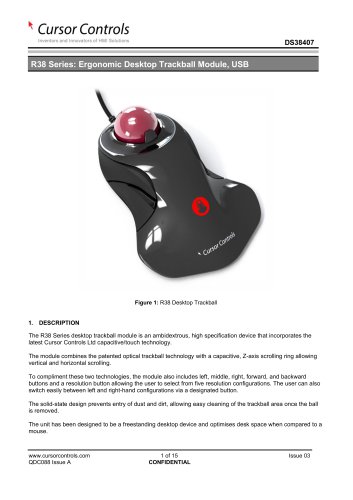
R38
The R38 Series desktop trackball module is an ambidextrous device utilizing capacitive/touch technology. It integrates optical trackball technology with a capacitive Z-axis scrolling ring for both vertical and horizontal scrolling. The module is equipped with multiple buttons for various functions and allows easy switching between left and right-hand configurations. Its solid-state design prevents dust entry and is optimized for desk space efficiency.
The module adheres to several standards, including IEC/EN 62368-1:2014, IEC/EN 55032:2015, and FCC CFR 47, Part 15.107.
The R38 trackball features infra-red optical navigation, integrated switch functionality, a 38mm ball, and Z-axis scrolling. It offers five resolution configurations and supports USB output. The device is designed for easy maintenance with a removable ball.
Mechanical: Weighs approximately 230 grams with an ABS housing. The trackball is 38.1mm in diameter and made of epoxy resin.
Electrical: Operates on USB protocol with a supply voltage of 4.4V to 5.25V DC and a maximum current of 100mA.
Environmental: Compliant with safety and EMC standards, featuring an IP40 sealing capability.
The trackball offers various settings, including resolution mode, scrolling modes, handedness modes, and lighting modes. Users can toggle between different configurations using designated buttons.
The ordering code is based on specifications such as body style, mounting option, electrical output, sealing capabilities, and ball color.
Customization options include custom colors and branding. Interested parties should contact a sales representative for more information.
Includes issue date and author remarks for version tracking.
- The ordering code has been modified by removing the digit '8'.
- A new section on customization has been added, providing options for tailoring the product to specific needs.
All information is confidential and subject to the company's terms and conditions, available on their website. Users are advised to verify that the information is current and suitable for their application. The use of these products in life support or critical systems requires prior written consent from Cursor Controls Ltd.
Catalog excerpts
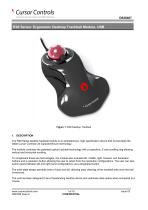
R38 Series: Ergonomic Desktop Trackball Module, USB Figure 1: R38 Desktop Trackball 1. DESCRIPTION The R38 Series desktop trackball module is an ambidextrous, high specification device that incorporates the latest Cursor Controls Ltd capacitive/touch technology. The module combines the patented optical trackball technology with a capacitive, Z-axis scrolling ring allowing vertical and horizontal scrolling. To compliment these two technologies, the module also includes left, middle, right, forward, and backward buttons and a resolution button allowing the user to select from five resolution configurations. The user can also switch easily between left and right-hand configurations via a designated button. The solid-state design prevents entry of dust and dirt, allowing easy cleaning of the trackball area once the ball is removed. The unit has been designed to be a freestanding desktop device and optimises desk space when compared to a mouse.
Open the catalog to page 1
Inventors and Innovators of HMI Solutions
Open the catalog to page 2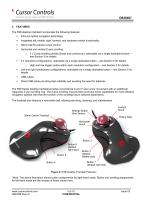
DS38407 3. FEATURES The R38 desktop trackball incorporates the following features: ▪ Infra-red optical navigation technology. Integrated left, middle, right, forward, and backward switch functionality. 38mm ball for precise cursor control. Horizontal and vertical Z-axis scrolling. o 2 x Z-axis scrolling modes (linear and continuous), selectable via a single dedicated button – see Section 5 for details. 5 x resolution configurations, selectable via a single dedicated button – see Section 5 for details. o High and low toggle modes within each resolution configuration – see Section 5 for details....
Open the catalog to page 3
Inventors and Innovators of HMI Solutions
Open the catalog to page 4
Inventors and Innovators of HMI Solutions Windows 10, 8.1,8, 7 Mac OS X, versions 10.8 or later Linux, CentOS 7, Ubuntu 19.04 LTS Android 5 or later Fully compliant with USB 2.0 (Low Speed) framework (chapter 9) and HID specifications
Open the catalog to page 5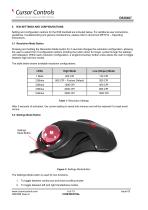
Inventors and Innovators of HMI Solutions Setting and configuration options for the R38 trackball are included below. For additional user instructions, guidelines, troubleshooting and general maintenance, please refer to document MKT014 - Operating Instructions. Pressing and holding the Resolution Mode button for 3 seconds changes the resolution configuration, allowing the user to select from 5 configuration options (holding the button down for longer cycles through the settings until released). Within each resolution configuration, a single/momentary button press allows the user to toggle between...
Open the catalog to page 6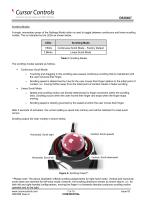
Inventors and Innovators of HMI Solutions Scrolling Modes A single, momentary press of the Settings Mode button is used to toggle between continuous and linear scrolling modes. This is indicated by the LEDs as shown below. Table 2: Scrolling Modes The scrolling modes operate as follows. ■ Continuous Scroll Mode: o Touching and dragging in the scrolling area causes continuous scrolling that is maintained until the user removes their finger. o Scrolling speed is determined by how far the user moves their finger relative to the initial point of contact, i.e.: moving further away from the initial...
Open the catalog to page 7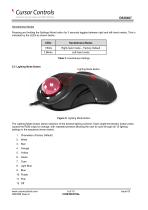
Inventors and Innovators of HMI Solutions Handedness Modes Pressing and holding the Settings Mode button for 3 seconds toggles between right and left-hand modes. This is indicated by the LEDs as shown below. Lighting Mode Button Table 3: Handedness Settings The Lighting Mode button allows selection of the desired lighting scheme. Each single/momentary button press causes the RGB output to change, with repeated presses allowing the user to cycle through all 12 lighting settings in the sequence shown below. 1. Chameleon (Factory Default)
Open the catalog to page 8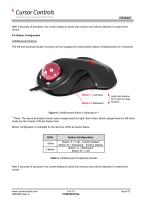
Inventors and Innovators of HMI Solutions DS38407 After 5 seconds of activation, the current setting is saved into memory and will be restored if a reset event occurs. Left/Backward Buttons The left and backward button functions can be swapped by holding both buttons simultaneously for 5 seconds. Hold both buttons for 5 secs to swap function Figure 6: Left/Backward Button Configuration*** ***Note: The above illustration shows button assignments for right-hand mode. Button assignments for left-hand mode are the reverse of those shown here. Button configuration is indicated by the device’s LEDs...
Open the catalog to page 9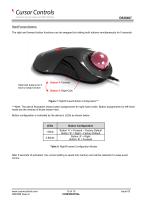
Inventors and Innovators of HMI Solutions Right/Forward Buttons The right and forward button functions can be swapped by holding both buttons simultaneously for 5 seconds. ***Note: The above illustration shows button assignments for right-hand mode. Button assignments for left-hand mode are the reverse of those shown here. Button configuration is indicated by the device’s LEDs as shown below. Table 5: Right/Forward Configuration Modes After 5 seconds of activation, the current setting is saved into memory and will be restored if a reset event occurs.
Open the catalog to page 10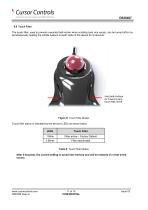
Inventors and Innovators of HMI Solutions The touch filter, used to prevent unwanted ball motion when scrolling (and vice versa), can be turned off/on by simultaneously holding the middle buttons on both sides of the device for 5 seconds. Touch filter status is indicated by the device’s LEDs as shown below. Table 6: Touch Filter Modes After 5 seconds, the current setting is saved into memory and will be restored if a reset event occurs.
Open the catalog to page 11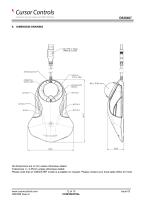
Inventors and Innovators of HMI Solutions SETTINGS BUTTON SCROLL AREA SCROLL AREA POLLING RATE All dimensions are in mm unless otherwise stated. Tolerances +/- 0.25mm unless otherwise stated. Please note that an IGES/STEP model is available on request. Please contact your local sales office for more
Open the catalog to page 12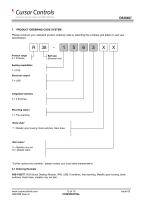
7. PRODUCT ORDERING CODE SYSTEM Please construct your standard product ordering code by selecting the numbers and letters to suit your specification: R Product range R = R Series Ball size (Nominal mm) Sealing capabilities 1 = IP40 Electrical output* 5 = USB Integrated switches 6 = 6 Switches Mounting option 3 = Free standing Body style* 7 = Metallic grey housing, black switches, black base Ball colour* F = Metallic ruby red M = Metallic black *Further options F = Metallic Red are available - please contact your local sales representative 6.1 Ordering Example R38-15637F: R38 Series Desktop Module,...
Open the catalog to page 13All NSI catalogs and brochures
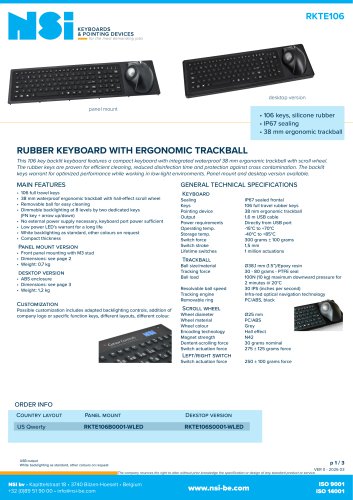 RKTE106
3 Pages
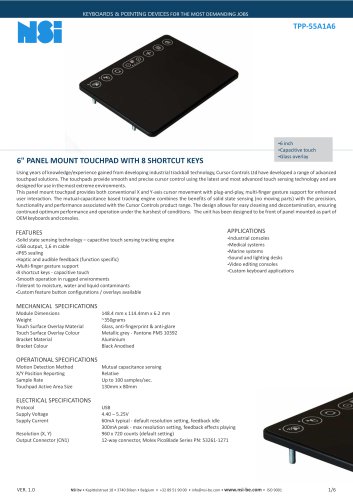 TPP touchpad
6 Pages
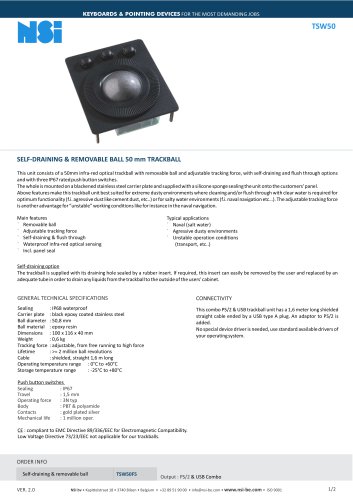 TSW50
TSW502 Pages
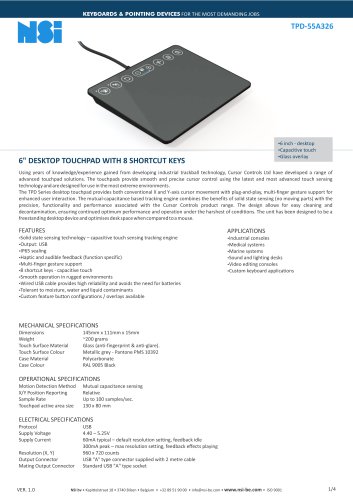 TPD touchpad
4 Pages
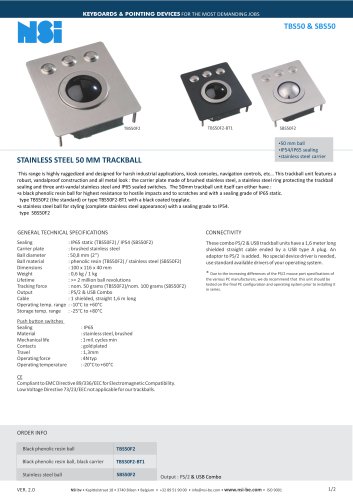 TBS50_SBS50
2 Pages
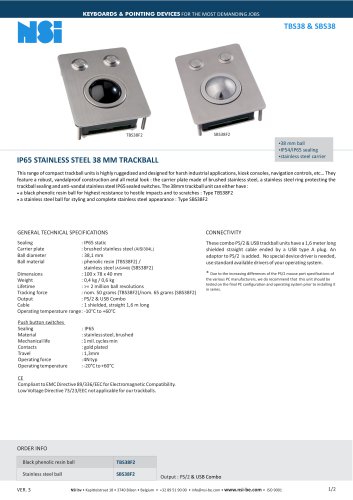 TBS38_SBS38
2 Pages
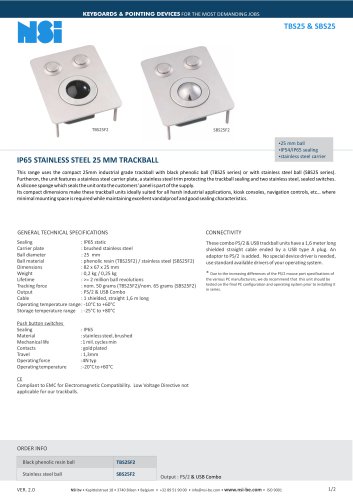 TBS25_SBS25
2 Pages
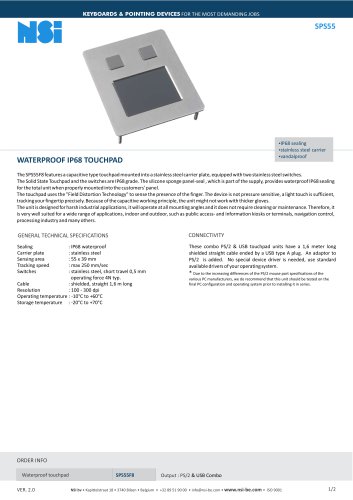 SPS55
SPS552 Pages
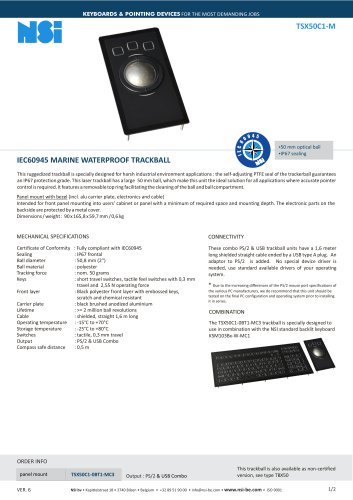 IEC60945_TSX50C1
2 Pages
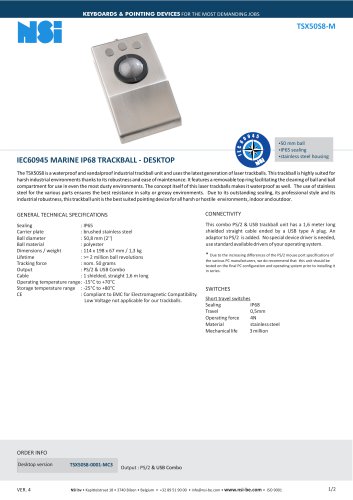 IEC60945_TSX50 desktop
2 Pages
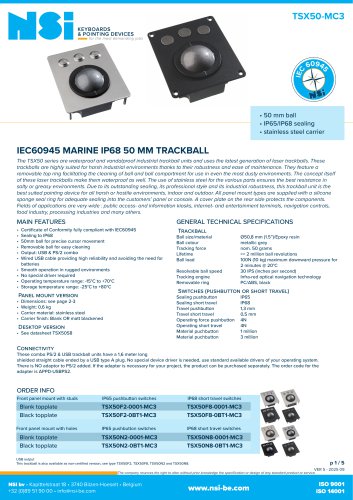 IEC60945_TSX50
5 Pages
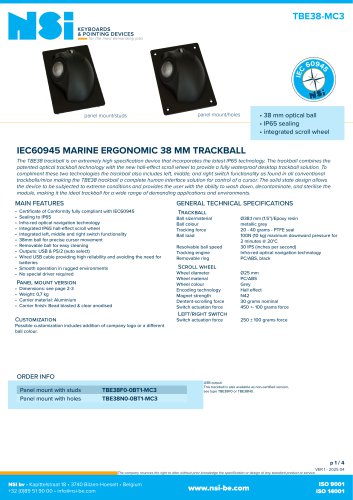 IEC60945_TBE38
4 Pages
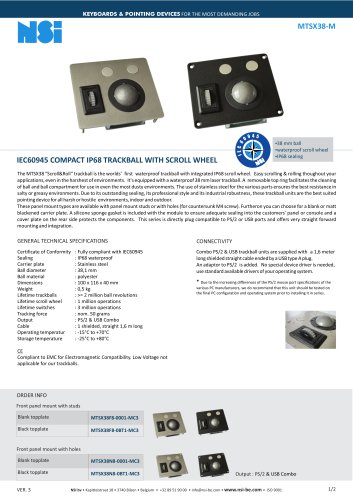 IEC60945_MTSX38
2 Pages
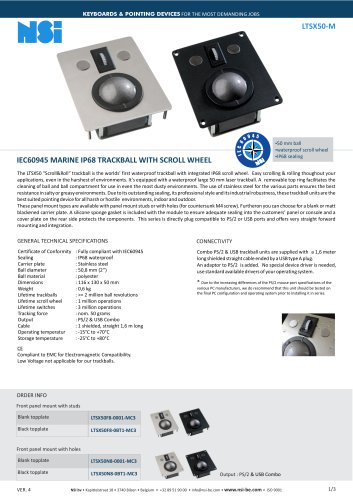 IEC60945_LTSX50
3 Pages
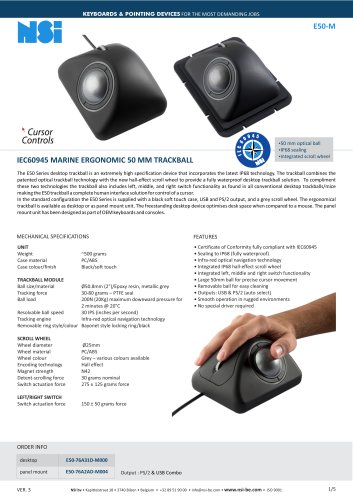 IEC60945_E50
5 Pages
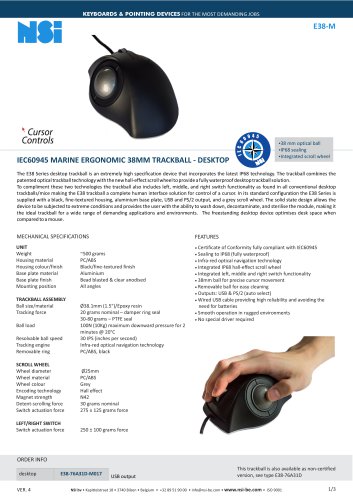 IEC60945_E38
3 Pages
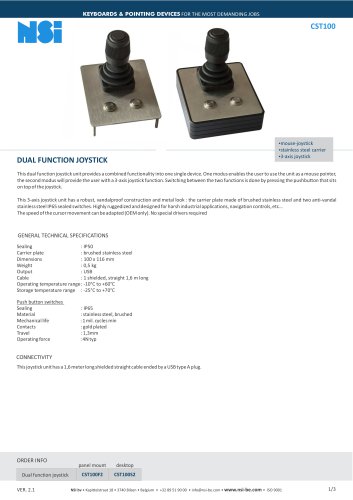 CST100
3 Pages
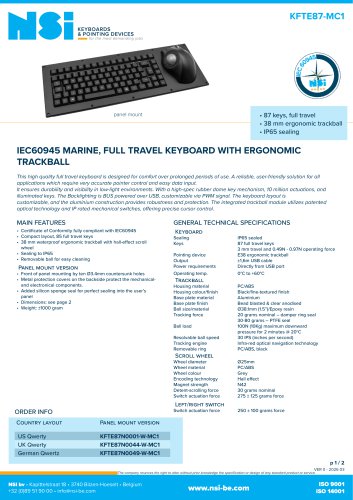 IEC60945_KFTE87
2 Pages
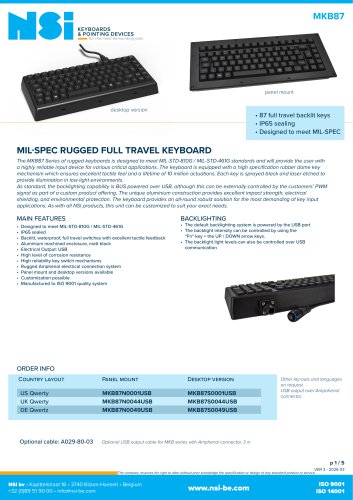 MKB87
MKB875 Pages
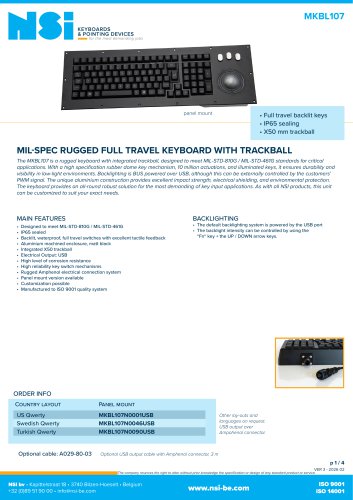 MKBL107
4 Pages
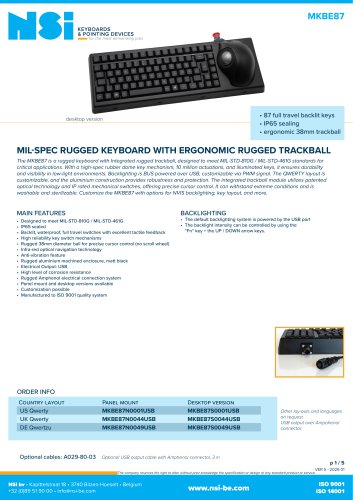 MKBE87
5 Pages
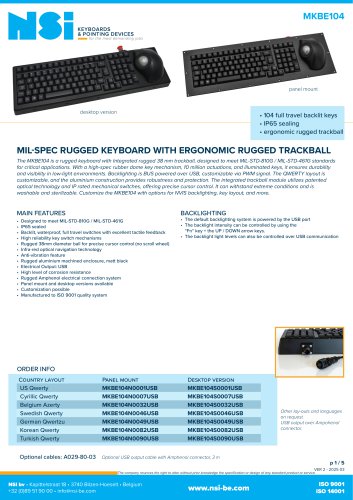 MKBE104
5 Pages
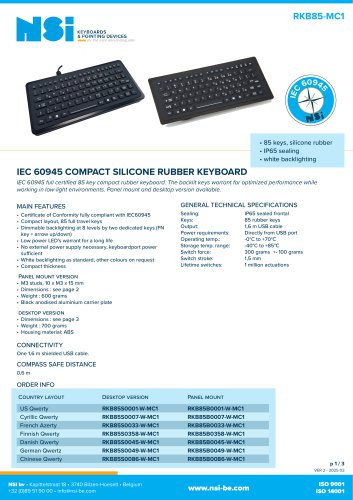 IEC60945_RKB85
3 Pages
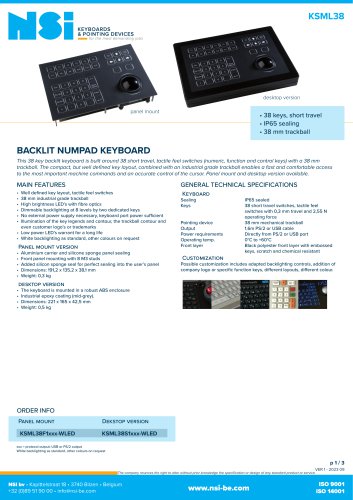 KSML38
3 Pages
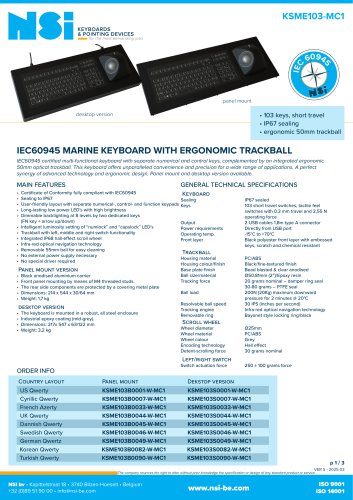 IEC60945_KSME103
3 Pages
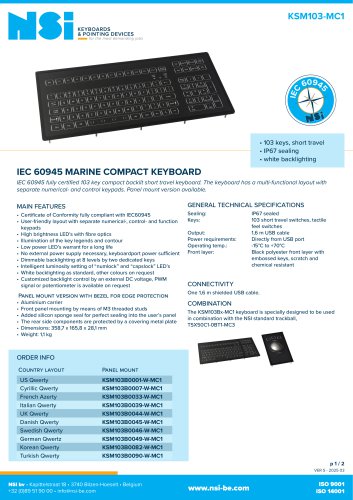 IEC60945_KSM103
2 Pages
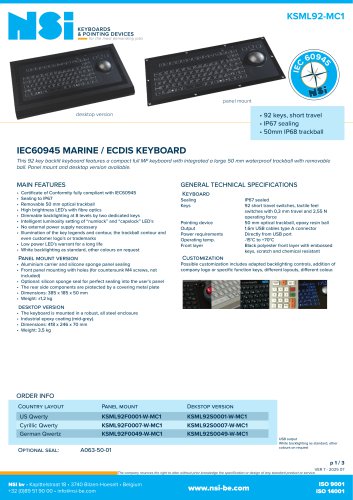 IEC60945_KSML92
3 Pages
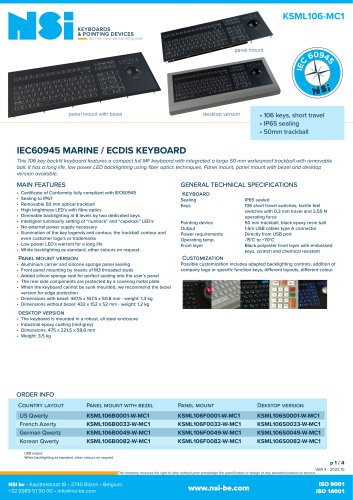 IEC60945_KSML106
4 Pages
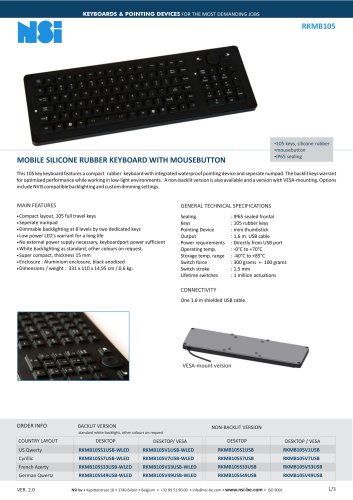 RKMB105
3 Pages
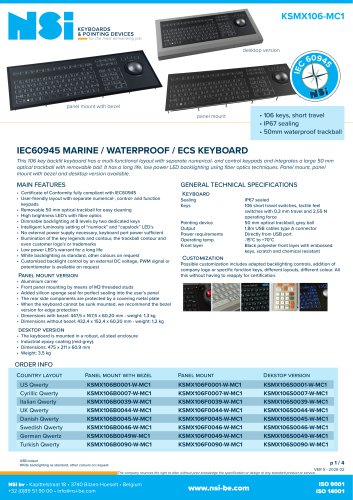 IEC60945_KSMX106
4 Pages
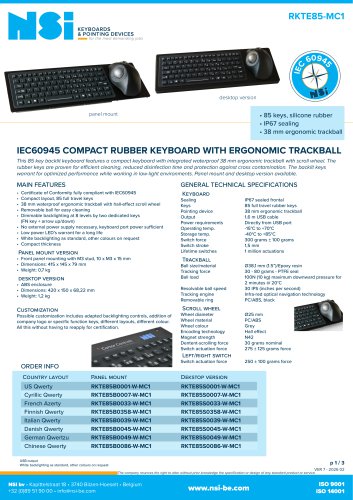 IEC60945_RKTE85
3 Pages
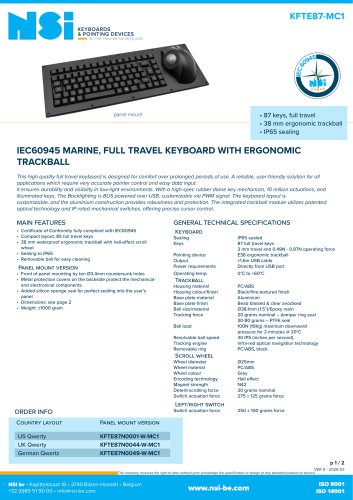 IEC60945_KFTE87
2 Pages
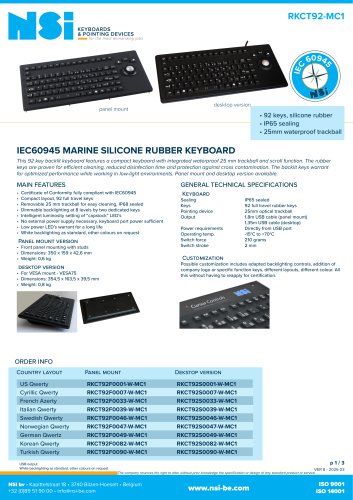 IEC60945_RKCT92
3 Pages
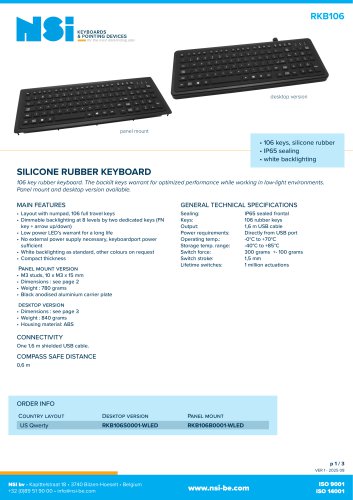 RKB106
3 Pages
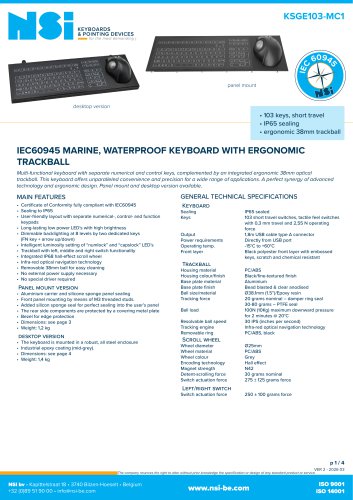 IEC60945_KSGE103
4 Pages
- Boat joystick
- Multi-function joystick
- NSI waterproof trackball
- NSI USB trackball
- NSI ship trackball
- Keyboard
- NSI panel-mount trackball
- Ship keyboard
- USB keyboard
- Keyboard with trackball
- NSI ship computer keyboard
- NSI computer keyboard with trackball
- IP65 keyboard
- Waterproof keyboard
- NSI USB computer keyboard
- Panel-mount keyboard
- IP68 computer keyboard
- Video camera joystick
- IP67 computer keyboard