
- Catalogs
- Ningbo Shanbei Technology Co.,Ltd
- WSC-70 Satellite compass_User manual_EN_V1.0

WSC-70 Satellite compass_User manual_EN_V1.0
1 /28Pages
WSC-70 Satellite compass_User manual_EN_V1.0
1 /28Pages
Catalog excerpts
User manual Ningbo SHANBEI Technology Co.,Ltd
Open the catalog to page 1
Warning: Before using this product, please refer to the important safety information in the user manual and review all warnings, limitations and disclaimers. This product is no substitute for proper training and careful seamanship. Proper installation and proper use of the equipment is the responsibility of the owner to avoid accidents, personal injury or property damage. The user of this product is solely responsible for compliance with maritime safety practices. The owner is solely responsible for installing and using the equipment in a manner that will not cause accidents, personal injury...
Open the catalog to page 2
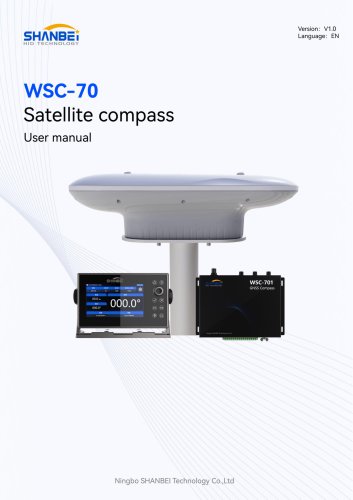
The WSC-70 Satellite Compass adopts advanced satellite navigation technology to provide high- precision positioning and heading data for various navigation equipment, such as radar, Electronic Chart Display and Information System (ECDIS), AIS, autopilot, and other marine equipment and systems. The product features the following characteristics: 1. Equipped with a dual-sensor antenna, ensuring accurate and stable data, with a heading accuracy of 0.2°RMS; 2. Supports all satellite systems across multiple frequencies, achieving higher accuracy; 3. Provides 3-axis velocity data including surge, heave,...
Open the catalog to page 4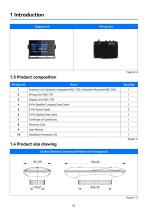
Wiring Unit Display Unit Outline Dimension Drawing of Antenna Unit (Integrated)
Open the catalog to page 5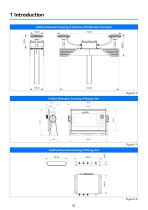
Outline Dimension Drawing of Wiring Unit
Open the catalog to page 6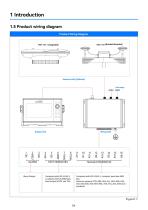
Product Wiring Diagram Antenna Unit (Optional) Power Supply Display Unit Wiring Unit LARM FAST NMEA0183 Standard NMEA0183 Alarm Output Compliant with IEC-61162-2, 2 outputs, fixed at 38400 bps, fixed output of HDT and THS Compliant with IEC-61162-1, 4 outputs, baud rate 4800 bps. Sentence outputs: DTM, GBS, GGA, GLL, GNS, GRS, GSA, GST, GSV, HDG, HDT, ROT, RMC, THS, VTG, ZDA, GMS (nonstandard)
Open the catalog to page 7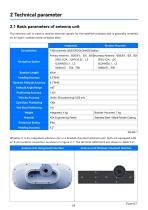
The antenna unit is used to receive external signals for the satellite compass and is generally installed on an open, unobstructed compass deck.
Open the catalog to page 8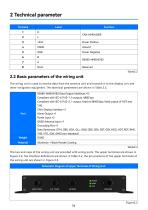
The two end caps of the wiring unit are provided with wiring ports. The upper terminals are shown in Figure 2.2; the interface definitions are shown in Table 2.4; the pin positions of the upper terminals of the wiring unit are shown in Figure 2.3.
Open the catalog to page 9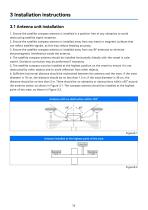
1. Ensure the satellite compass antenna is installed in a position free of any obstacles to avoid obstructing satellite signal reception. 2. Ensure the satellite compass antenna is installed away from any metal or magnetic surfaces that can reflect satellite signals, as this may reduce heading accuracy. 3. Ensure the satellite compass antenna is installed away from any RF antennas to minimize electromagnetic interference inside the antenna. 4. The satellite compass antenna should be installed horizontally (ideally with the vessel in calm water). Deviation correction may be performed if necessary....
Open the catalog to page 13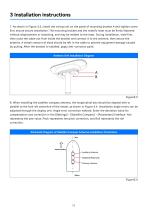
7. As shown in Figure 3.3, install the wiring unit on the panel of mounting bracket A and tighten screw B to ensure secure installation. The mounting bracket and the vessel's mast must be firmly fastened without displacement or loosening, and may be welded to the mast. During installation, weld first, then route the cable out from inside the bracket and connect it to the antenna, then secure the antenna. A certain amount of slack should be left in the cable to prevent equipment damage caused by pulling. After the bracket is installed, apply anti-corrosion paint. 8. When installing the satellite...
Open the catalog to page 14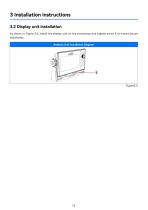
As shown in Figure 3.5, install the display unit on the countertop and tighten screw E to ensure secure installation.
Open the catalog to page 15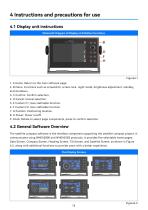
1. A Home: Return to the main software page. 2. B Menu: Functions such as screenshot, screen lock, night mode, brightness adjustment, standby, and shutdown. 3. C Confirm: Confirm selection. 4. D Cancel: Cancel selection. 5. E Custom FI: User-definable function. 6. F Custom F2: User-definable function. 7. G Position: Positioning location. 8. H Power: Power on/off. 9. Knob: Rotate to select page components, press to confirm selection. The satellite compass software is the interface component supporting the satellite compass project. It communicates using NMEA2000 and NMEA0183 protocols. It provides...
Open the catalog to page 16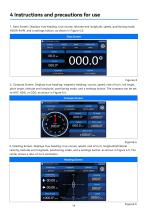
1. Data Screen: Displays true heading, true course, latitude and longitude, speed, positioning mode, HDOP, RAIM, and a settings button, as shown in Figure 4.3. 2. Compass Screen: Displays true heading, magnetic heading, course, speed, rate of turn, roll angle, pitch angle, latitude and longitude, positioning mode, and a settings button. The compass can be set to HDT, HDG, or COG, as shown in Figure 4.4. Longitudinal/ Lateral Velocity
Open the catalog to page 17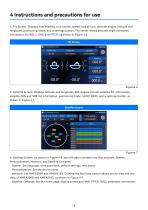
4. Tilt Screen: Displays true heading, true course, speed, rate of turn, attitude angles, latitude and longitude, positioning mode, and a settings button. The center shows attitude angle animation information for ROLL, YAW, and PITCH, as shown in Figure 4.6. 5. Satellite Screen: Displays latitude and longitude, 360-degree circular satellite list information, satellite PRN and SNR list information, positioning mode, HDOP, RAIM, and a settings button, as shown in Figure 4.7. Satellite Screen Positioning HOOP RAIM RAIM.LEVEL GN-3D 0.7 Safe 100m 6. Settings Screen: As shown in Figure 4.8, the left...
Open the catalog to page 18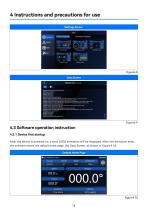
Settings Screen q> System Screen Selection Parameter Settings Compass Screen Satellite Screen Attitude Screen Data Screen < - NMEA0183 Bus Data 4.3 Software operation instruction4.3.1 Device first startup After the device is powered on, a boot LOGO animation will be displayed. After the animation ends, the software enters the default home page, the Data Screen, as shown in Figure 4.10. Default Home Page i UTC 2022/08/30 15:30:00
Open the catalog to page 19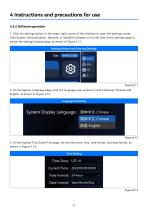
1. Click the settings button in the upper right corner of the interface to open the settings screen. Click System, Personalization, Network, or Satellite Compass on the left side of the settings page to switch the settings display page, as shown in Figure 4.11. 2. On the System Language page, click the language pop-up box to switch between Chinese and English, as shown in Figure 4.12.
Open the catalog to page 20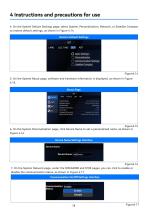
4. On the System Default Settings page, select System, Personalization, Network, or Satellite Compass to restore default settings, as shown in Figure 4.14.
Open the catalog to page 21All Ningbo Shanbei Technology Co.,Ltd catalogs and brochures
 Product catalogue
36 Pages






- Analog indicator
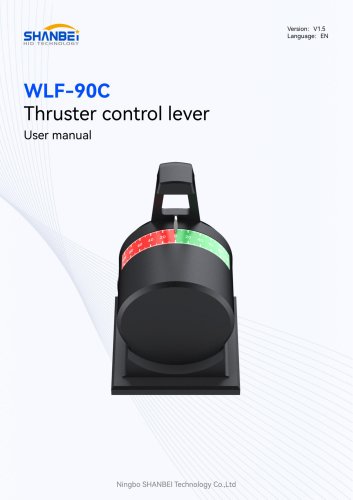
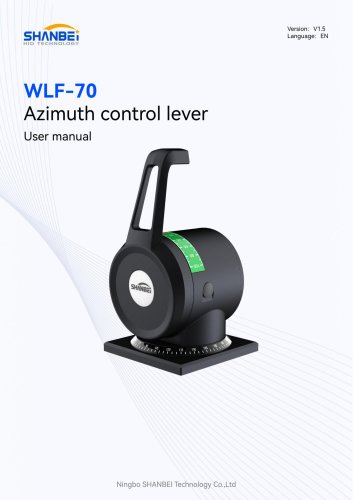
- Shanbei Technology control lever
- Steering compass
- Shanbei Technology engine control lever
- Boat steering compass
- Ship sensor
- Boat control lever
- Shanbei Technology digital control lever
- Built-in steering compass
- Mechanical control lever
- Shanbei Technology single-lever control lever
- Multi-lever control lever
- Digital indicator
- Shanbei Technology surface-mount control lever
- Shanbei Technology ship control lever
- Ship indicator
- Motor indicator
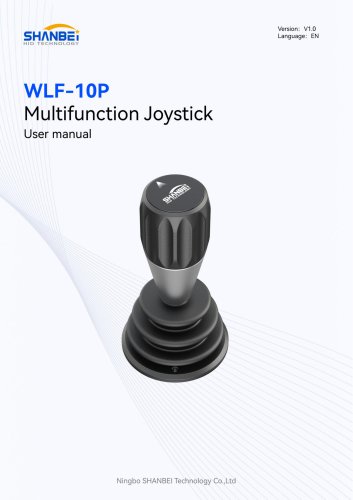
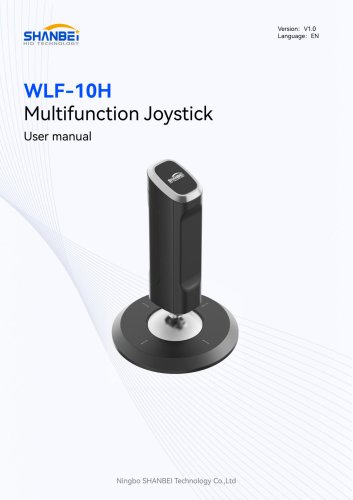
- Ship joystick
- Rudder angle indicator
- Multi-function joystick